
When a position is saved, there are three sections of information: Candidates, Evaluators, and Interview Setup.
To edit the title, click the pencil icon.
Click Archive Position at the top right to archive the position.
Please note: When you archive a position, the position information is only available to view. You will not be able to edit any of the position information while it is archived. To edit the information, you will need to re-open the position.
Candidates: Add and Manage Candidates
Use the Candidates tab within the position to add and manage candidates.
Custom statuses are listed at the top of this section. These statuses help manage candidates throughout the hiring process.
Click Add or Upload to add candidates to the position.
For a guide on adding candidates, click here.
When candidates are added, their interview will be listed. To edit which columns you view for the interview, click Edit columns.
To search for candidates, use the Filter candidates option. You can also click Filter to create a custom search filter to search for candidates.
To compare candidates, click Compare. Use the down arrow to choose to compare candidates in an Interactive Compare View or a Table View.
Evaluators: Add and Manage Evaluators
Click on the Evaluators tab within the position to add and manage evaluators.
Click Add Evaluator to add evaluators to the position.
Each evaluator assigned will be listed. Under Status, click the number of candidates assigned to see who they are assigned to evaluate and add more candidates to evaluate.
Under Actions, an email icon and trash icon are listed. The email icon will send an evaluation reminder for the evaluator. The trash icon will remove the user as an evaluator.
Tip: The evaluator listed without the trash icon is the position owner.
Interview Setup
Click on the Interview Setup tab within the position to manage the interview setup.
Candidate Experience
Add, edit, or remove an Intro and Closing video. For more information on how to add Intro and Closing videos, click here.
In Branded Theme, pick the applicable theme. Depending on your account settings, you may have a designated theme already assigned. Click Preview to preview any email templates from HireVue and candidate interview pages.
In Connection settings, choose the default audio connection and interview recording setting for the interviews. You can change these settings when you add individual candidates.
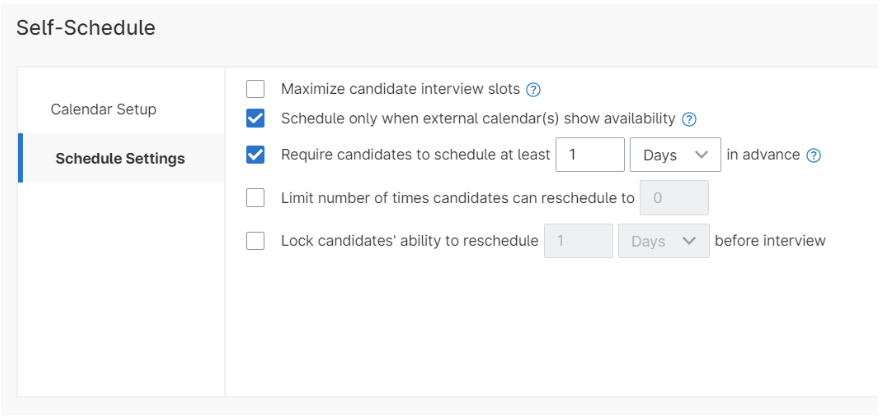
In Self-Schedule settings, click the pencil icon to edit the settings. You can edit the hours, available dates, available days of the week, and the days in advance notice that candidates can schedule their interview. You can also check Maximize candidate interview slots to require candidates to choose back to back slots. You can also check the box Schedule only when external calendar(s) show availability to ensure you are available for the interview. To learn more about scheduling functionality, check out HireVue Coordinate.
Interview Template
Choose the timezone for the interview in the drop down menu.
At the top, name the interview session.
In Details, choose the duration of the interviews, interviewers, and the room for the interview.
In Questions, type in a question or click Load Questions to load questions from the question bank, a question template, or from a previous position.
In Instructions, add any instructions for the interview, a comment, or a link to any applicable files.
You can also add another session or load previous sessions.